Generating Node Certificates and Synchronizing with Connected Controllers
- You need to have already created a solution that contains at least three entities of type “Controller.”
- Each entity of type “Controller” must already have been assigned a static IP address.
- Open your existing solution.
- In the “Solutions” menu, click the “Configuration” menu item.
- Select the root element of the tree structure.
- Click the “CERTIFICATES” tab.
- Click [+] to create a new certificate.
- The “Generate New Certificate” dialog opens.
- Select Certificate Authority from the “Role” drop-down menu.
- Click [Generate].
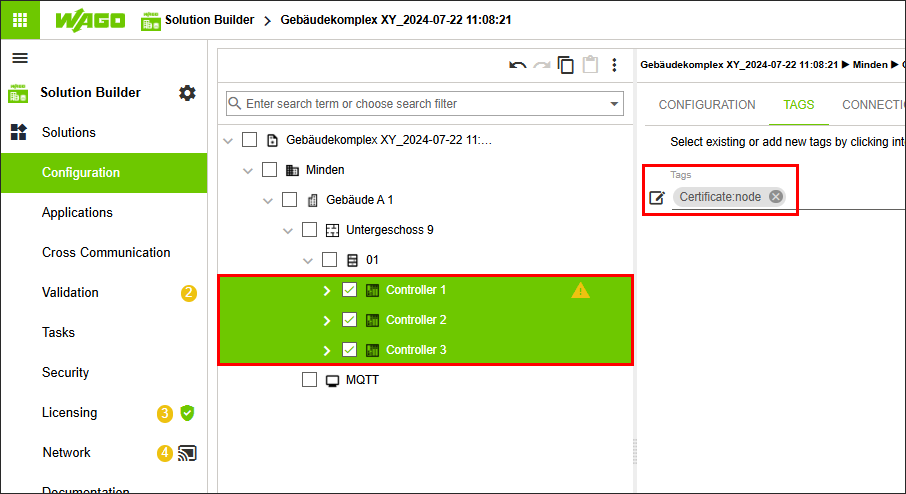
- Select all three created entities of type “Controller” at the same time.
- Click the “TAGS” tab.
- Select the Certificate:node tag.
- The Certificate:node tag is assigned to all three created entities of type “Controller.”
- Select the root element of the tree structure.
- Click the “CERTIFICATES” tab.
- Click
 .
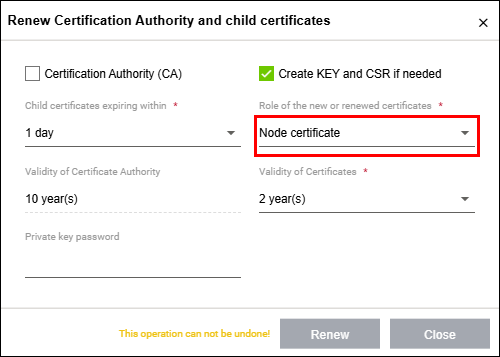
. - The “Renew Certificate Authority and Subcertificates” dialog opens.
- Under “Role of New or Renewed Certificates,” select the Node Certificate option.
- Click [Renew].
- Three fieldbus node certificates are generated for the three created entities of type “Controller.”
- Click “Network” in the “Solutions” menu.
- Click [Merge Detailed].
- The “Synchronize Differences” dialog opens.
- Check whether the table view contains the “Certificates (BACnet)” entry so it can be synchronized.
- Click [Synchronize].
- The controllers are synchronized.