Creating an Initial BACnet/SC Network and Adding Entities Manually
- You need to have already created a solution that contains at least one entity of type “Building” and three entities of type “Controller.”
- Open your existing solution.
- In the “Solutions” menu, click the “Configuration” menu item.
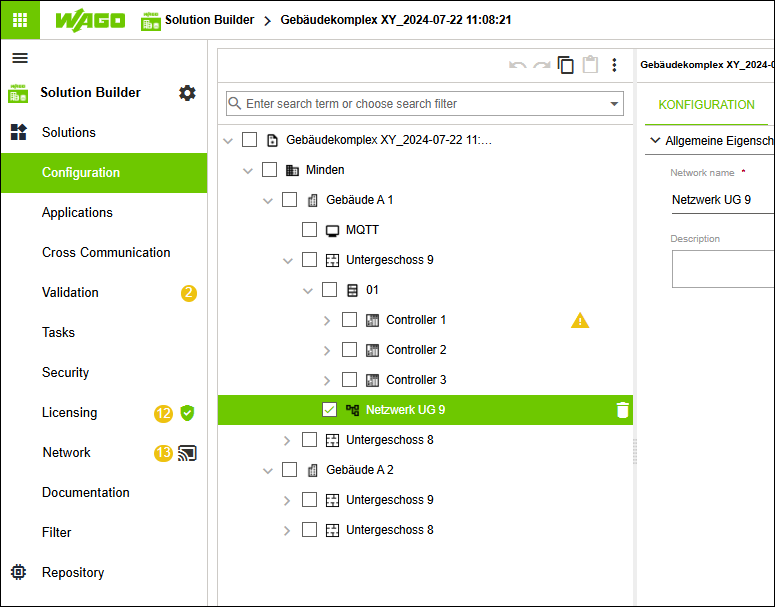
- In the tree structure, select the first entity of type “Building” and open the structure below it.
- Under the first entity of type “Floor,” create an entity of type “Network.”
(Optional: The “Network” entity can also be created in other locations in the upper part of the tree structure.) - Click the “CONFIGURATION” tab.
- Name this entity “Network UG 9.”
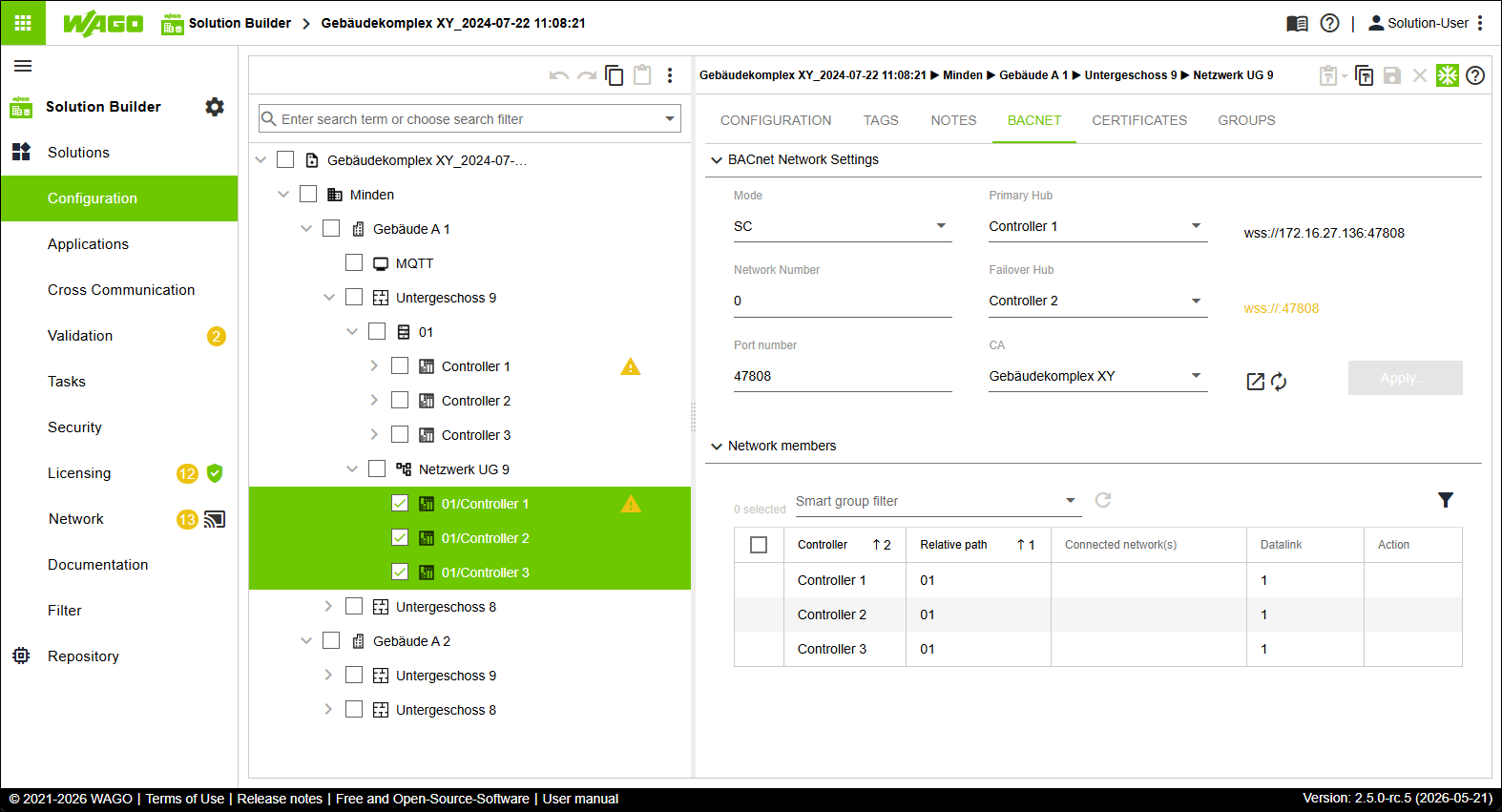
- Click the “BACNET” tab.
- Click
 .
. - The current view is fixed.
- In the tree structure, select the entities of type “Controller” that you want to add to the “Network” entity.
- Drag and drop the entities of type “Controller” into the “Network Participants” area.
- The controllers have been added to the network.
- The controllers are referenced in the tree structure under “Network UG 9.”
- The controllers are listed in black font because they were added manually.
- From the “Mode” drop-down menu, select the SC option.
- From the “Primary Hub” drop-down menu, select the controller you want to use as the primary hub.
- From the “Failover Hub” drop-down menu, select the controller you want to use as the failover hub.
- Click [Apply].
- All the settings you made are written to the corresponding controllers.
- The first network is configured.