Importing Planning Data and Generating Application Template
- Option 1: You have created a new solution (see Create New Solution) and enabled the “Enable Efficient Engineering” checkbox.
- Option 2: You updated the addressing system on an existing solution and enabled the “Enable Efficient Engineering” checkbox.
- The root element “Application Definitions” has been created in the tree structure.
- You have exported a file in .xlsl format from the planning software you used (for example “EPLAN”) that contains all necessary planning data.
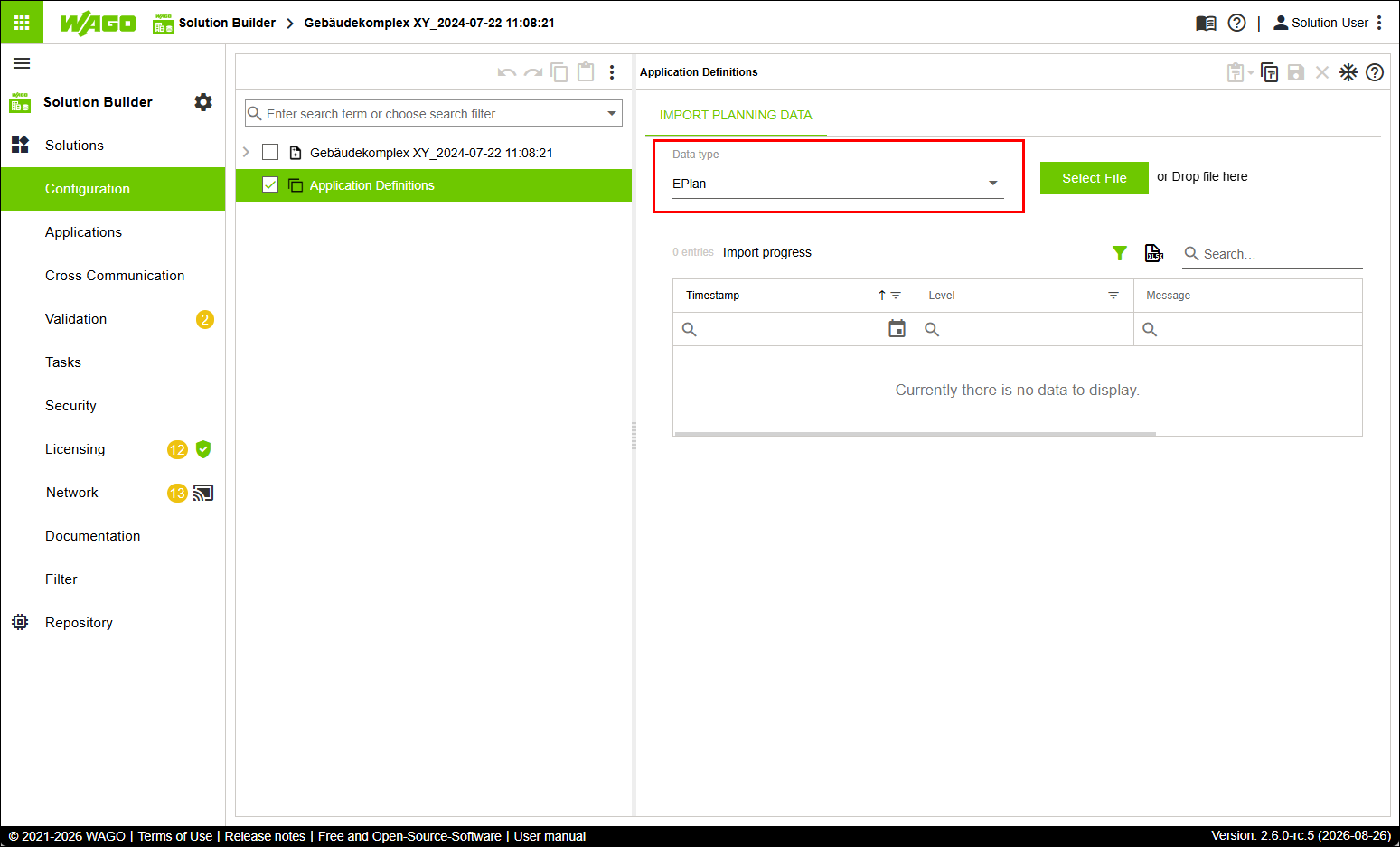
- In the “Solutions” menu, click the “Configuration” menu item.
- Select the root element “Application Definitions.”
- Click the “IMPORT PLANNING DATA” tab.
- In the “Data type” selection field, choose the Eplan option.
 Note
NoteOnly EPLAN can be selected!
Currently only the planning software “EPLAN” is supported. Therefore, only the Eplan option is available in the “Data type” selection field!
- Click [Select File].
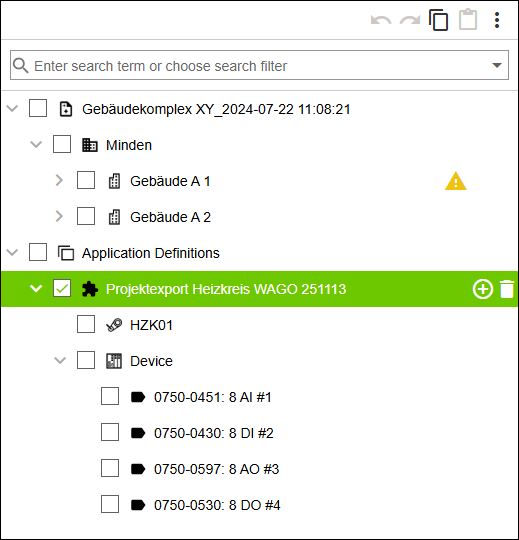
- Upload the file that you exported from the planning software (in the example shown, the file Projektexport Heizkreis WAGO 251113.xlsx).
- The existing tree structure is extended under the root element “Application Definitions” by a new entity “Application Definition”. The newly created structure bears at the highest level the name of the uploaded file (in the example shown the name Projektexport Heizkreis WAGO 251113) and consists of the subordinate entities “System”, “Controller” and “Module.”
- All steps performed are logged in the “IMPORT PLANNING DATA” tab.
- The software moves one hierarchical level down from the root element “Application Definitions” to the entity “Application Definition.”
- Click the “CODE GENERATION” tab.
- Click [Generate Application Template].
- The defined structure is passed to the software CODESYS in the background, which generates a Application template from it.
- All steps performed are logged in the “CODE GENERATION” tab.
- Click
 .
. - The software switches to the “Applications” menu item and selects the generated Application template.
- Assign the selected Application template to a “Controller” entity (see Adding an Application Template and Assigning It to a Created Controller).