Configure Different Firmware Version
You can change the firmware version set in the project for the configuration of your device, i.e., you can already configure the firmware version in the project that you would like to use later on the device. You can find the function for changing the firmware version via the three‑dot menu next to the device in the “Devices in Project” area.
In this case, “Configure” simply means changing the firmware version in the project. No new firmware is transferred to the device here, as is the case with a firmware update (see Perform Update).
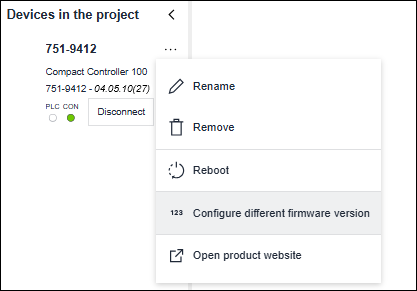
- In the context menu of the device, click [Configure different firmware version].
- Select the required firmware version.
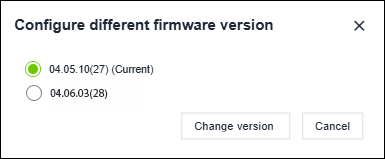
- You can also find the firmware versions available in the product catalog under the respective device.
- Click [Change version] to change the configured firmware version.
- Open the “Settings” view.
- You can now see all the parameters and settings that the new firmware version supports. Observe the following after changing the firmware version:
• The same parameters/settings are retained.
• New parameters/settings initially receive default values/settings.
• Some parameters/settings can be omitted. - In the “Devices in Project” area, click [Connect].
- A comparison is made between the entries you have made in the project and the device values.
If the mismatch is compatible, a connection is established.
If the mismatch is incompatible, e.g., due to other device firmware restrictions, then the connection is aborted.
In this case, make sure that the selected firmware version and the firmware version of the device match or are compatible. Pay attention to messages/hints to correct the error.