Mapping and Assigning Data Points
- You have imported planning data and generated an Application Template from it (see Importing Planning Data and Generating Application Template).
- In the tree structure, select the first entity of type “Controller” and open the structure below it.
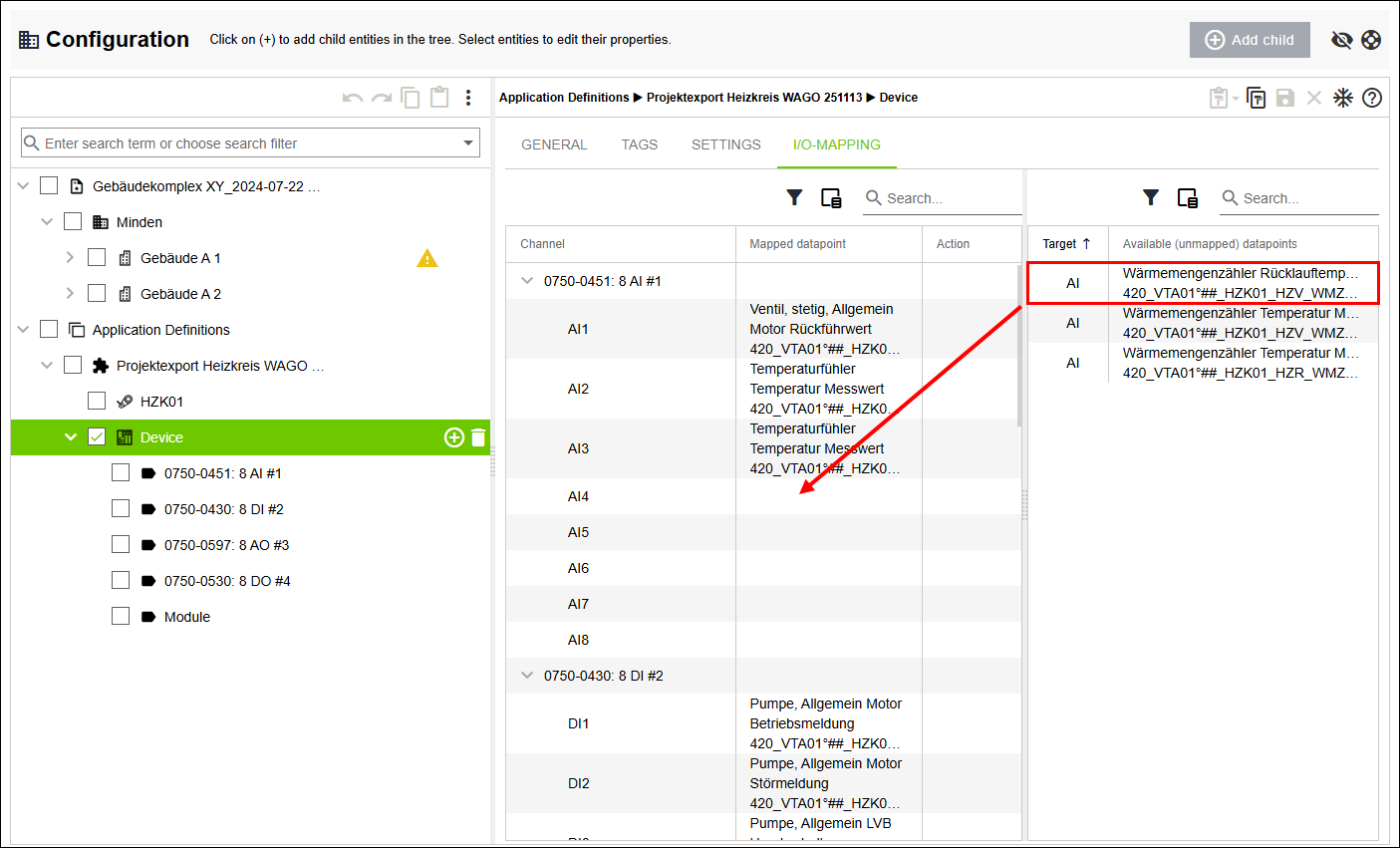
- Click the “I/O MAPPING” tab.
- A tabular overview of all existing channels and data points appears.
- The table overview is structured as follows: On the left are all existing channels with their assigned data points; on the right are all data points that have not yet been assigned.
- Drag the unassigned data points, one after another, onto the available channels using drag and drop.
 Note
NoteData point and channel must be identical!
Data point and channel must be of the same type; that is, a data point of type “AI” can only be assigned to a channel of type “AI”!
- The unassigned data points are assigned to the remaining free channels.
- Click the “CODE GENERATION” tab.
- Click [Generate Application Template].
- The defined structure is passed to the software CODESYS in the background, which generates a Application template from it.
- All steps performed are logged in the “CODE GENERATION” tab.
- Click
 .
. - The software switches to the “Applications” menu item and selects the generated Application template.
- Assign the selected Application template to a “Controller” entity (see Adding an Application Template and Assigning It to a Created Controller).
- Click the “DATA POINTS” tab.
- A hierarchical overview of the imported structure appears.
- Check the updated structure for plausibility.