Linking BACnet/SC Networks Together
- You need to have successfully completed the steps in sections Creating an Initial BACnet/SC Network and Adding Entities Manually and Creating a Second BACnet/SC Network and Adding Entities Automatically and thus created two networks.
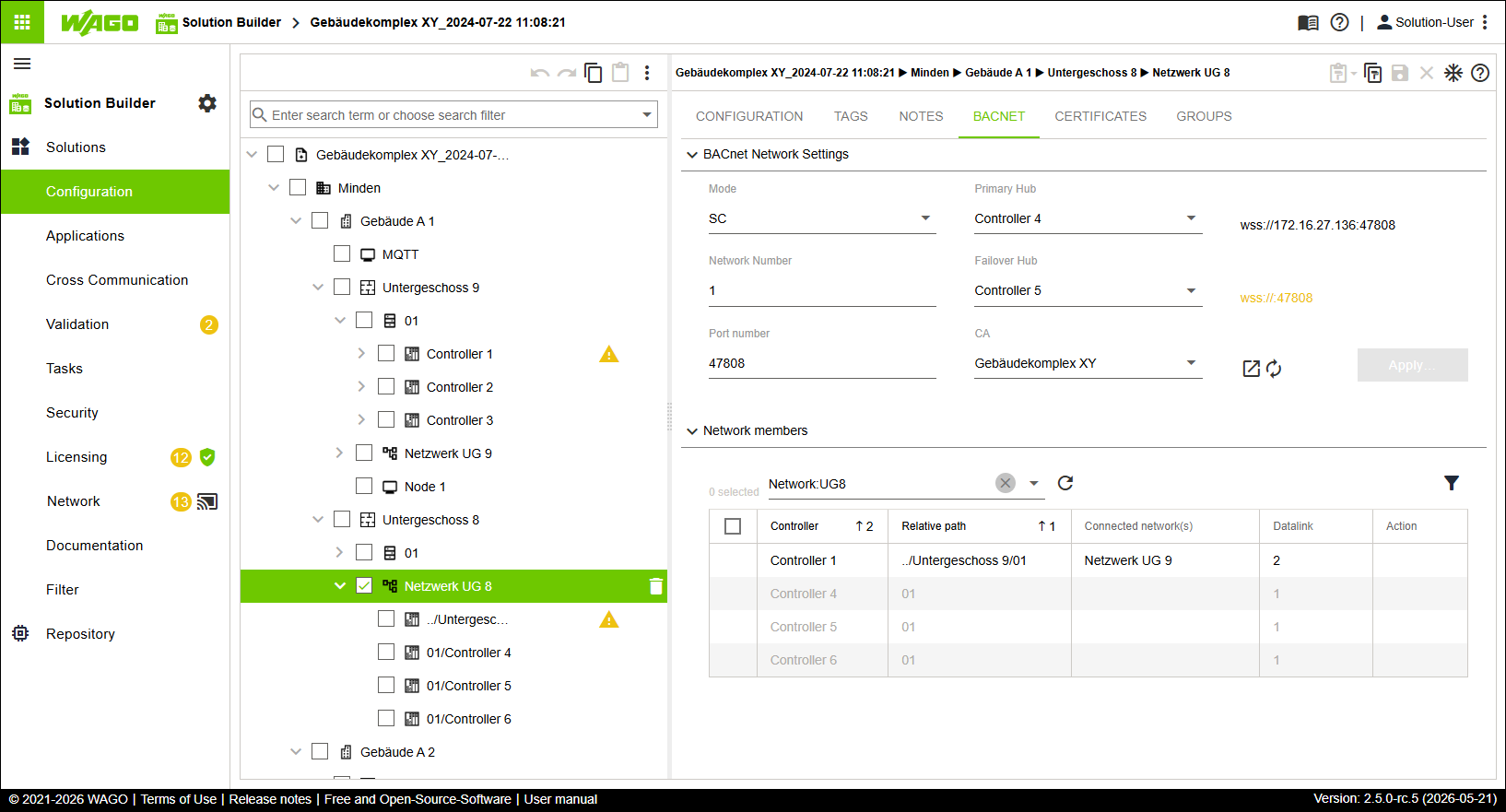
- Select one of the controllers referenced in “Network UG 9.”
- Manually add this controller to “Network UG 8” (see Creating an Initial BACnet/SC Network and Adding Entities Manually).
- The controller has been added to the network.
- The controller is referenced in both networks and provides the link between “Network UG 9” and “Network UG 8.”
- The controller is listed in black font because it was added manually.
- The controller has been assigned different datalink IDs in the two networks.
- Click “Network” in the “Solutions” menu.
- Click [Merge Detailed].
- The “Synchronize Differences” dialog opens.
- Check whether the table view contains the “Certificates (BACnet)” entry so it can be synchronized.
- Click [Synchronize].
- The controllers are synchronized.